Add your images
Choose a background photo first. Then add a logo, sticker, illustration or another image as a separate layer.
Stack images, arrange every layer, add text, and export a polished PNG. A simple image layer editor that runs directly on your device.
What this editor does: It layers separate images, vector shapes, and editable text you add. It does not automatically extract objects from a flattened photo or generate AI-separated layers.
Create a composition one element at a time. The original files remain on your device while you edit.
Choose a background photo first. Then add a logo, sticker, illustration or another image as a separate layer.
Move objects directly on the canvas. Change the stacking order, size, rotation and transparency in the side panel.
Export PNG, JPG or WebP, download individual transparent PNG layers in a ZIP, or keep an editable project backup.
One photo, two overlays, three separate layers, one export. These are real screenshots of this editor and a real PNG export from it — the mug is a demo photo, not a customer project.
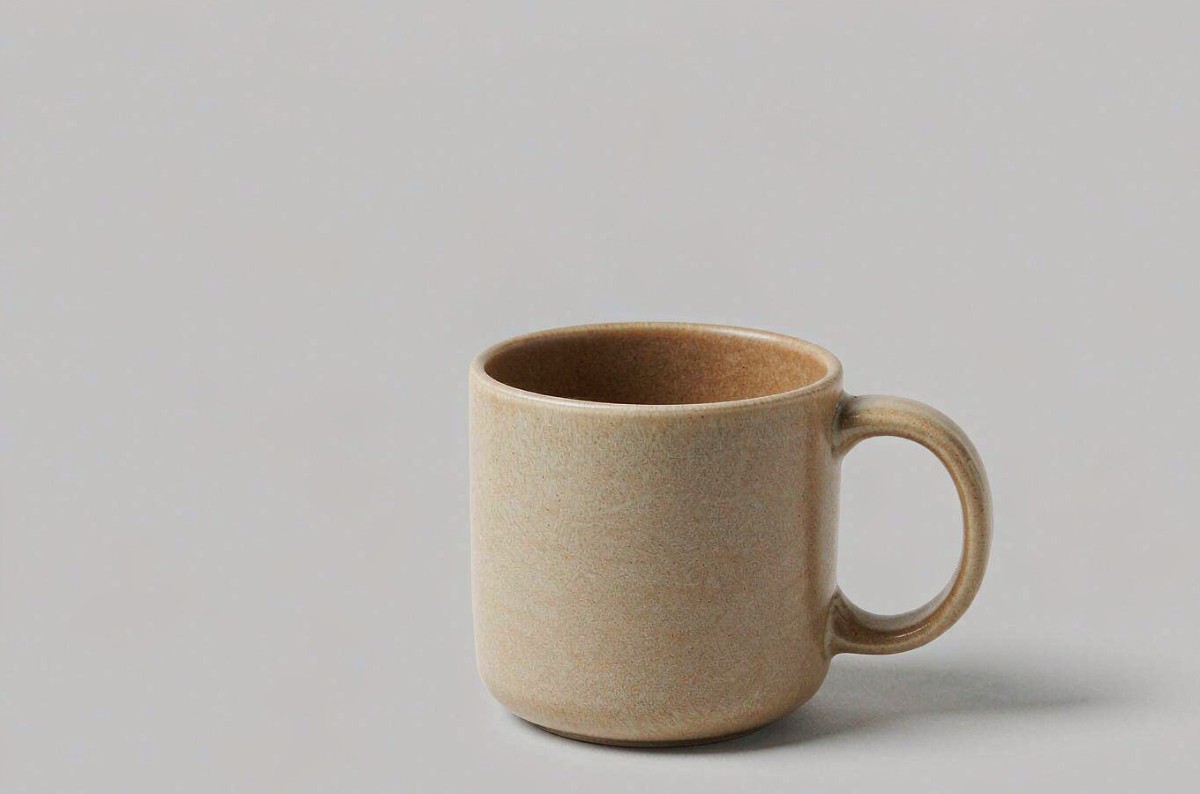
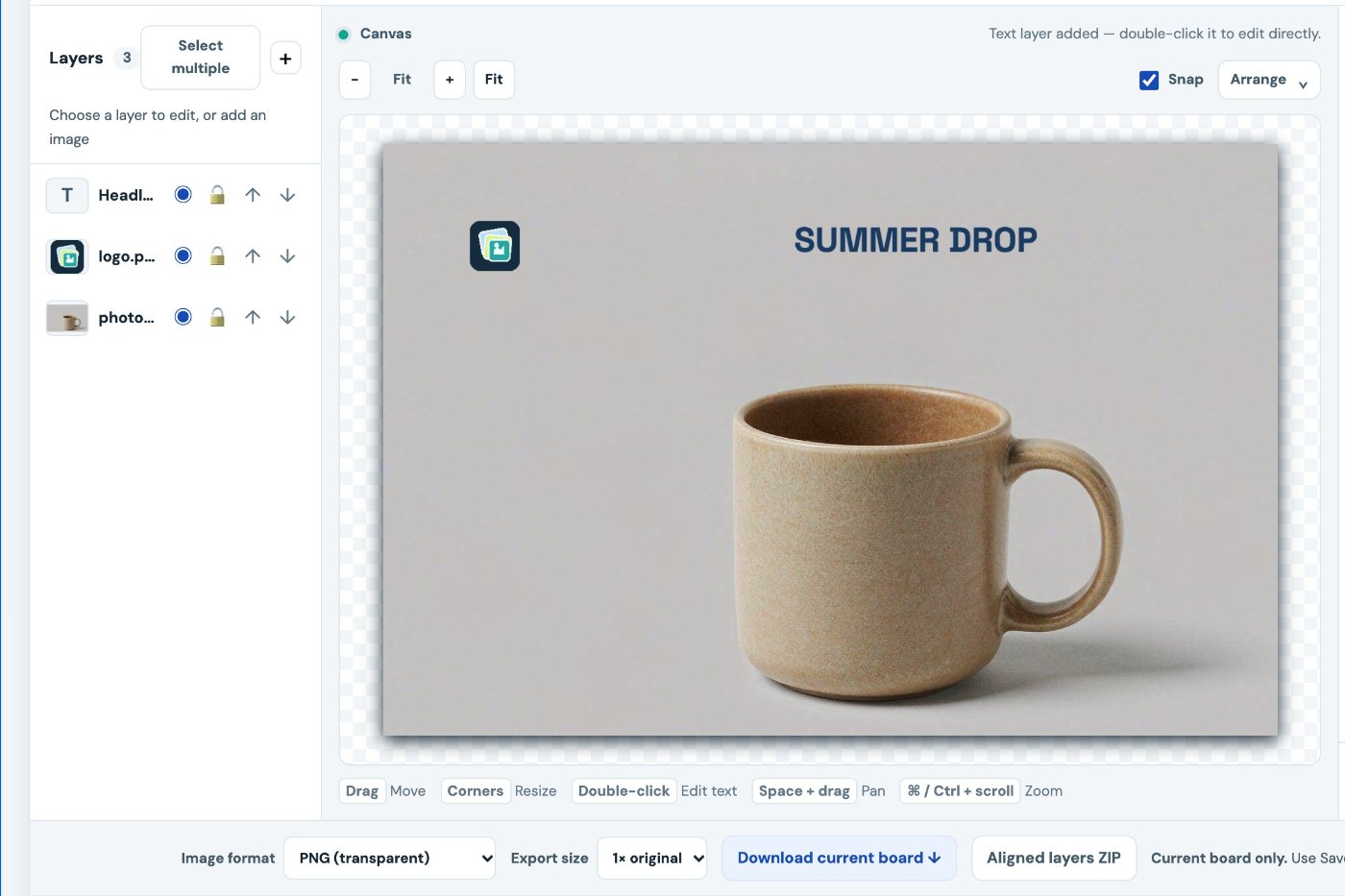
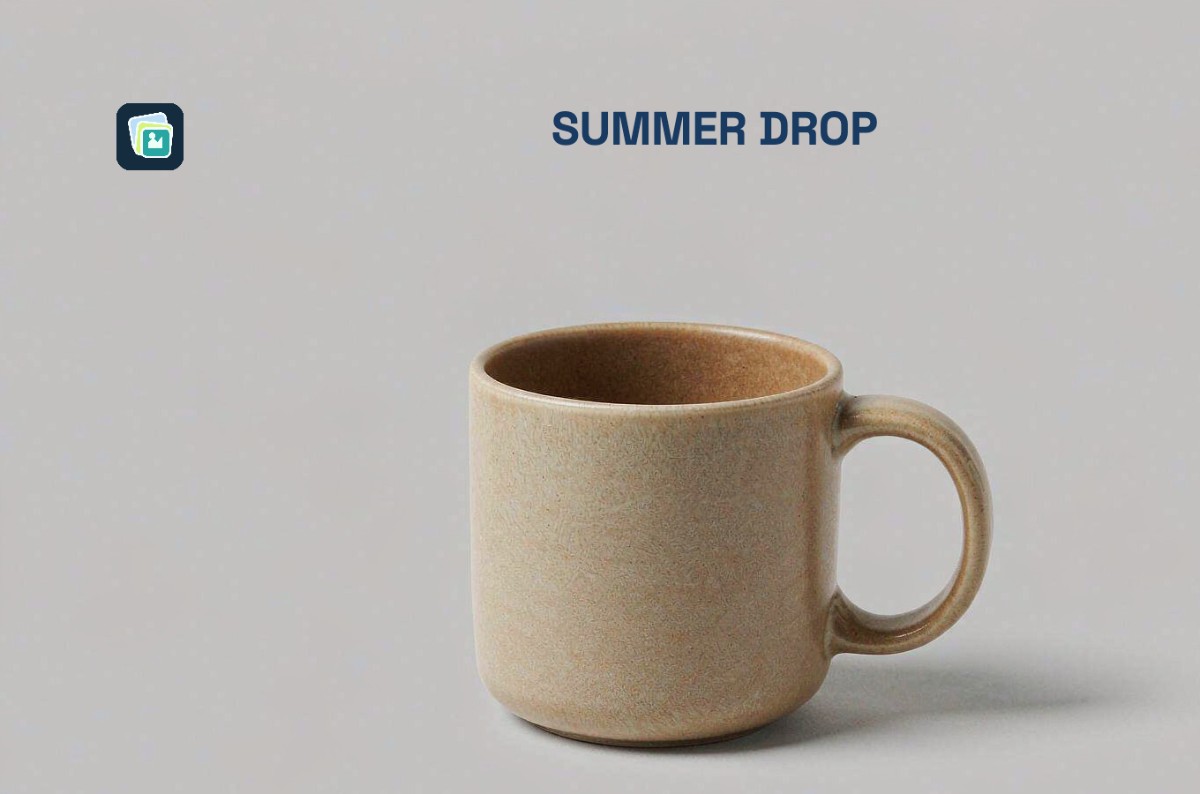
To repeat this: add the photo first, add your logo as a second image layer, add a text layer, then export. If the logo arrives as a JPG with a white box around it, remove that background first — this editor stacks images, it does not cut out subjects.
When you flatten a design too early, moving a logo or changing a label can mean starting over. ImageLayer gives each photo, sticker or text element its own movable layer. You can work out a layout visually without installing a large desktop editor.
Bring your own transparent PNGs for cut-out objects, product images or illustrations. Standard JPEG photos are supported too, but because JPEG has no transparency, its rectangular background covers anything beneath it unless you reduce opacity or use a blend mode.
Use the layer stack to decide what belongs in front, what sits behind and which elements should stay hidden. Toggle visibility to compare variants, then export a finished PNG, JPG or WebP. Download the transparent layers ZIP to reuse pieces in another tool, or save an editable ImageLayer project to return later.
Put a transparent product image over a branded background, then position your price tag, logo or text as another layer. Adjust opacity to soften a texture without altering the product.
Combine a photograph with decorative stickers and a short title. Switch off individual layers when you need a cleaner version of the same arrangement.
Add a transparent logo above a photo, scale it down, place it near a corner, and reduce opacity to create a subtle brand mark.
Try a visual layout by dragging foreground elements across a background image. Export the combined preview to discuss it with a client or collaborator.
An image layer is a visual element that can be positioned and adjusted independently of the elements beneath it. A photo can form your background. A logo can sit on the top layer. A line of text can be another layer. Your editor draws the elements in order to create the final composition.
This is different from simply pasting one picture into another and immediately saving it. Keeping layers separate while you work means you can still move or hide a piece, change its transparency, or place it in front of a different object.
The browser reads image files into local memory and renders the canvas without sending them to an image-processing API. ImageLayer also attempts to save an editable draft in browser storage on this device. Use My projects to save several named designs in the same browser. Use Save project to download a portable backup before leaving, especially on private browsing sessions or devices with limited storage. Opening your project file restores the separate layers.
There are two different tasks with similar names. A layered image editor takes separate images or text and lets you combine them. An AI image layer splitter starts with one already-flattened picture and estimates the individual subjects, objects, text and background inside it. The AI process requires image segmentation or reconstruction and may create imperfect edges or change hidden details.
The current ImageLayer editor focuses on the first task: hands-on control over layers that you add. You can export a portable ImageLayer project document to continue editing those layers later. To isolate a subject from a JPEG, prepare a transparent cutout with a background-removal tool first, then add that PNG here. We do not claim to recover an original Photoshop document from a flattened JPG.
In short: use ImageLayer when you already have separate images or text and want to combine and arrange them with full control. If you only have one flattened picture and need it split into movable objects, that is a different AI segmentation task this editor does not perform — prepare transparent cutouts with a background-removal tool first.
For clean composites, use a high-resolution photo as your base and transparent PNGs for foreground objects. Keep important details inside the canvas boundaries. Large files may use significant browser memory; reduce extremely large photos before importing them on a phone. The first uploaded image determines the initial canvas proportions, within the editor's performance limit.
Choose PNG when you need transparent edges or crisp text and shapes (logos, cut-outs, overlays). Choose JPG for smaller photo-only images where a solid white background is fine. Choose WebP for smaller files with transparency on modern browsers. Use the layers ZIP when you want each layer as its own transparent PNG to reuse elsewhere, and save the editable .imagelayer.json project when you need to reopen and keep editing the separate layers later. PNG and project JSON preserve the most detail; JPG discards transparency and is lossy.
1) Flattening too early: keep elements on separate layers until the layout is final, or moving one item later means redoing the rest. 2) Expecting JPG transparency: a JPEG photo has a solid rectangular background that covers layers beneath it unless you reduce opacity or use a blend mode. 3) Relying on the browser draft: the on-device draft can be cleared by site-data cleanup, private browsing or storage limits, so download an editable project backup for anything important.
Most online image editors do one of two very different jobs. Knowing which job you need tells you which tool to open.
Focused image-layer editor. Add separate photos, text and shapes as independent layers, then move, resize, rotate, reorder, crop or fade each one and export PNG, JPG or WebP. Processing runs in your browser, drafts stay on your device, and there is no sign-up for the core editor. Best when your goal is quick, private image layering.
A Photoshop-style editor with masks, blending modes, smart objects and PSD support. Great for advanced retouching and PSD workflows, but a heavier interface that goes well beyond simple layering.
A photo editor with layers, filters and quick fixes. Strong for editing a photo, less focused on composing several separate images as simple stacked layers.
Template-driven graphic design with a large asset library and AI features. Excellent for social graphics and polished templates, but design-oriented rather than a precision layer editor.
| Task | ImageLayer | Photopea | Pixlr | Canva |
|---|---|---|---|---|
| Stack separate images as layers | Yes | Yes | Yes | Yes |
| Local (on-device) processing | Designed for it | Yes | Feature-dependent | Cloud-oriented |
| Sign-up required | No (core editor) | No (basic) | No (basic) | Usually yes |
| Advanced masks & PSD files | No | Yes | Limited | Limited |
| AI image-to-layers split | No | Not a core feature | No | Magic Layers (limited) |
| Template & asset library | No | No | No | Yes |
In short: choose ImageLayer for fast, private layering of separate images you already have; choose Photopea for advanced Photoshop-style editing and PSD files; choose Canva for template-based design. None of these tools turns a single flattened photo into editable layers automatically.
Related guides: Overlay Images Online · Free Photoshop Alternative for Image Layers
Yes. Combine JPG, PNG or WebP images with editable text and shapes. Move, resize, rotate and reorder layers in your browser, then export the result.
Yes. The editor is free to use: no subscription, trial timer or payment details are needed to import images, arrange layers, add text and export PNG, JPG or WebP.
No. Open the homepage and start editing; there is no sign-up or login step. Named designs are saved in this browser through My projects, and Save project downloads a portable .imagelayer.json file you can reopen later on another device.
Yes. Everything runs inside the browser tab on your device: choose your images, arrange them as layers, and export the result. No desktop install, browser plugin or account is required.
No. The current editor processes imported images on your device. Drafts and named projects are saved in this browser's local device storage where available, not uploaded to an image-processing API.
Yes, with one caveat. Images are read and drawn in your browser and are not sent to an image-processing server, so a private photo does not leave your device during editing. The caveat is local storage: drafts and My projects live in this browser, so download a project backup for work you need to keep.
No. This is a manual layer editor. AI image-to-layers extraction and reconstruction are not currently available.
Yes. Add text, rectangles and ellipses. Change text family, size, color, outline and shadow, and edit shape fill, size and border.
Yes. Add the base photo first, then add the second image as a new layer. Drag it on the canvas to position it, use the corner handles to resize or rotate it, and lower the layer's opacity in the side panel to blend it with the photo underneath. Stacking order can be changed at any time in the layer list.
Yes. Use the handles around the selected layer to resize or rotate. Shift-click layers to select several, group them, move them together or center them on the canvas.
Yes. Image layers have edge cropping, brightness, contrast, saturation, blur and horizontal or vertical flip controls. These adjustments are non-destructive in the editable project.
Yes. ImageLayer runs in a modern mobile browser such as Safari on iPhone or Chrome on Android; there is no app to install. On small screens the workspace switches between a canvas view and a Layers & edit view, and the same touch controls move, resize and reorder layers. Very large photos can exceed a phone's memory limits, so reduce them before importing.
Yes. Export the selected transparent PNG, or download a ZIP with one full-canvas transparent PNG per layer and a JSON manifest. You can also export a flattened PNG, JPG or WebP composition.
Yes. My projects stores named designs locally in this browser, while Save project downloads a portable .imagelayer.json backup that retains layer data. Browser storage can be cleared or unavailable, so download backups for important work.
Yes. Use the toolbar, Ctrl/Command+Z to undo and Ctrl/Command+Shift+Z to redo. The editing session keeps up to 40 recent history steps. History does not persist across browser restarts.
No. ImageLayer currently exports flattened image formats, transparent PNG layers in a ZIP, and its own editable project JSON. It cannot reconstruct the original editable PSD layers from a flattened JPG or PNG.
You can upload JPG, PNG and WebP files up to 25 MB each. The editing canvas is limited to 2400 pixels along its longest edge; high-resolution exports have additional memory and dimension limits.
There is no sign-up quota; the limits are technical rather than account-based. Each file can be up to 25 MB, the canvas is capped at 2400 pixels on its longest edge, named projects depend on the browser storage available on your device, and undo history keeps up to 40 steps per session.
Start with a photo, build with layers and export when it looks right.